> ## Documentation Index
> Fetch the complete documentation index at: https://docs.augent.app/llms.txt
> Use this file to discover all available pages before exploring further.
# Obsidian Integration
> Turn your knowledge into a visual graph
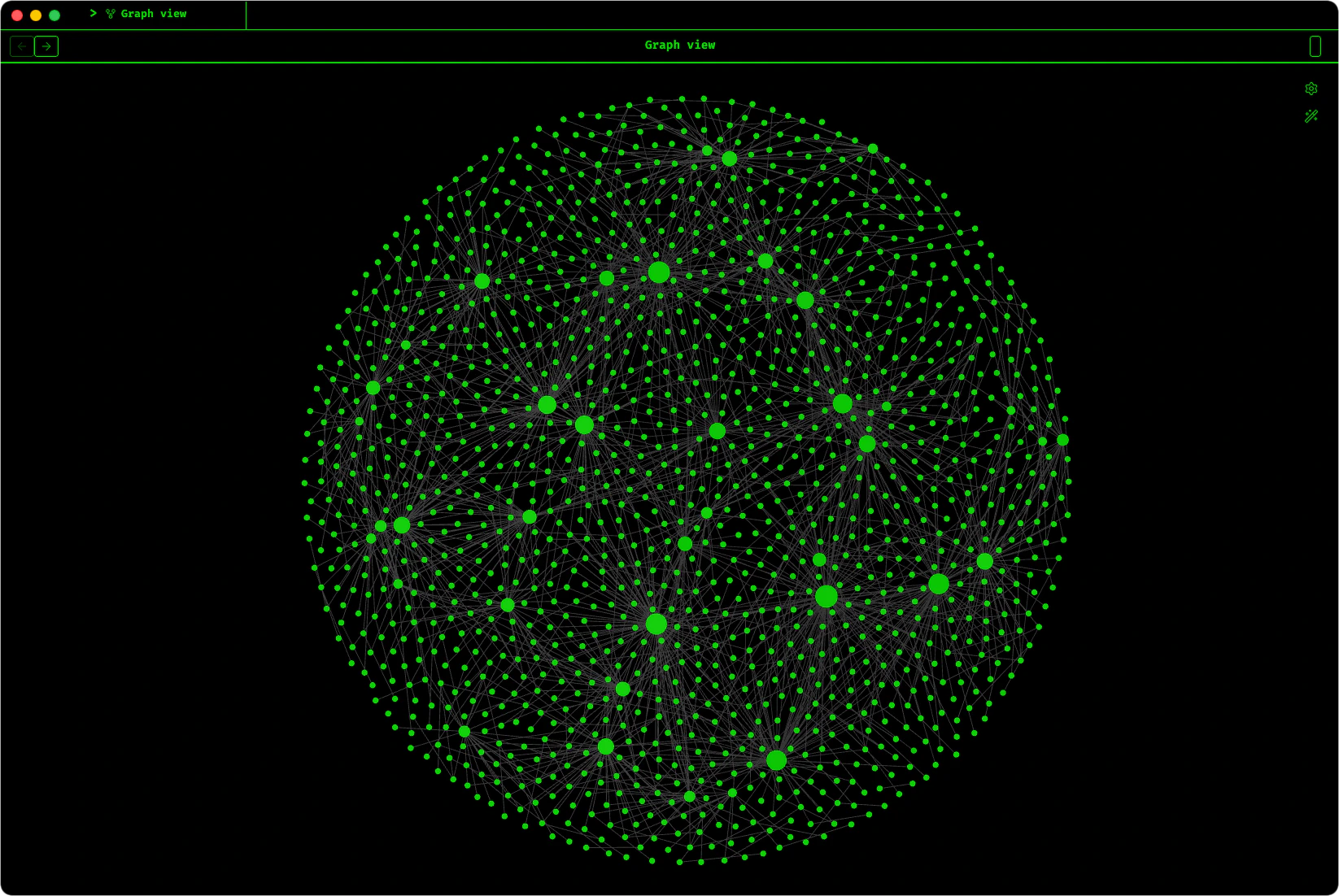
Every transcription, note, and translation Augent creates is a markdown file with structured YAML frontmatter, tags, timestamps, source URLs, and `[[wikilinks]]` between related content. Point Obsidian at the memory directory and you get a live knowledge graph that grows with every `take_notes` call.
 Set Obsidian as the default opener for `.md` and `.txt` files on macOS.
## What you get
* **YAML frontmatter** on every file: title, tags, duration, language, date, type
* **Automatic tagging**: semantic embeddings assign topic tags without any manual work
* **`[[Wikilinks]]`** between semantically related transcriptions
* **MOC (Map of Content) hub files** that cluster transcriptions by topic
* **Notes ↔ transcription links**: every notes file links back to its source
* **No orphan nodes**: chronological neighbor links ensure every file is connected
## File types
| Type | Description | Created by |
| --------------- | ------------------------------------------------ | ----------------------------------------- |
| `transcription` | Raw timestamped transcription from audio | `transcribe_audio` |
| `notes` | Formatted notes with headers and structure | `take_notes` |
| `translation` | English translation of non-English audio | `transcribe_audio` with `translated_text` |
| `moc` | Map of Content hub linking all files under a tag | `rebuild_graph` |
## How connections form
1. **Tags** create shared hub nodes. Two files tagged `#AI` both connect to the AI node
2. **`[[Wikilinks]]`** connect semantically similar transcriptions via embedding cosine similarity
3. **MOC files** act as cluster centers, pulling related nodes together
4. **Notes** link back to their source transcription via `source_transcription` frontmatter
5. **Translations** link back to the original via `original` frontmatter
6. **Chronological neighbors**: every new transcription links to the previous one, preventing orphans
***
## Graph view
### Color groups
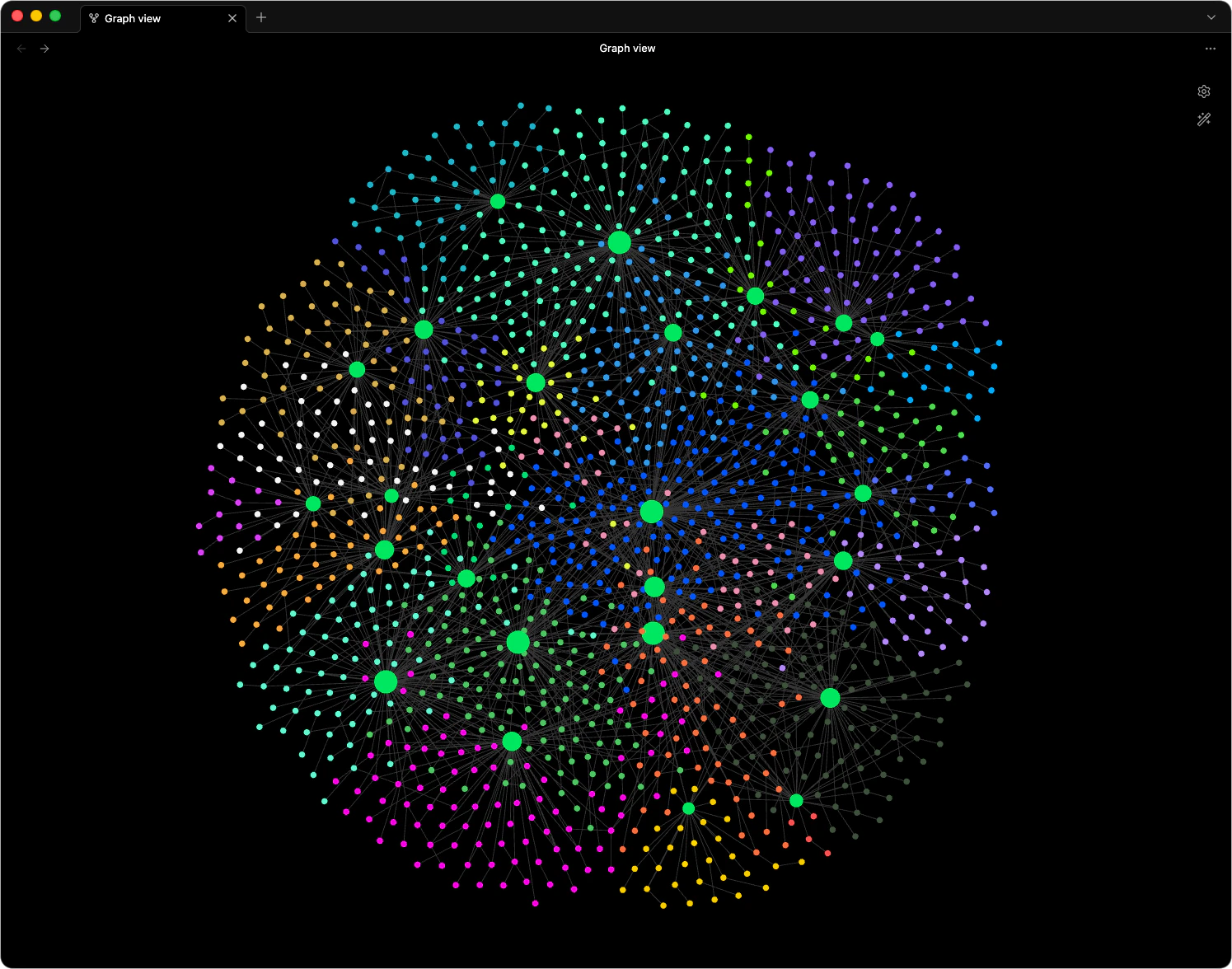
Open **Graph view > Settings** (the gear icon) and add color groups to visually distinguish topics. These are examples to get you started — replace them with your own tags and colors:
| Query | Color | Hex |
| ------------------ | ------------- | --------- |
| `path:MOC` | Augent Green | `#00F060` |
| `tag:#AI` | Orange | `#FF6D00` |
| `tag:#Science` | Blue | `#448AFF` |
| `tag:#Cooking` | Green | `#69F0AE` |
| `tag:#Programming` | Purple | `#7C4DFF` |
| `tag:#Music` | Light Grey | `#E0E0E0` |
| `tag:#Fitness` | Red | `#FF1744` |
| `tag:#DIY` | Electric Blue | `#0055FF` |
| `tag:#Gaming` | Cyan | `#18FFFF` |
| `tag:#Art` | Amber | `#FFD740` |
| `tag:#Math` | Teal | `#1DE9B6` |
| `tag:#Design` | Pink | `#FF4081` |
Add more groups as your tags grow. Any query that works in Obsidian search works here.
Set Obsidian as the default opener for `.md` and `.txt` files on macOS.
## What you get
* **YAML frontmatter** on every file: title, tags, duration, language, date, type
* **Automatic tagging**: semantic embeddings assign topic tags without any manual work
* **`[[Wikilinks]]`** between semantically related transcriptions
* **MOC (Map of Content) hub files** that cluster transcriptions by topic
* **Notes ↔ transcription links**: every notes file links back to its source
* **No orphan nodes**: chronological neighbor links ensure every file is connected
## File types
| Type | Description | Created by |
| --------------- | ------------------------------------------------ | ----------------------------------------- |
| `transcription` | Raw timestamped transcription from audio | `transcribe_audio` |
| `notes` | Formatted notes with headers and structure | `take_notes` |
| `translation` | English translation of non-English audio | `transcribe_audio` with `translated_text` |
| `moc` | Map of Content hub linking all files under a tag | `rebuild_graph` |
## How connections form
1. **Tags** create shared hub nodes. Two files tagged `#AI` both connect to the AI node
2. **`[[Wikilinks]]`** connect semantically similar transcriptions via embedding cosine similarity
3. **MOC files** act as cluster centers, pulling related nodes together
4. **Notes** link back to their source transcription via `source_transcription` frontmatter
5. **Translations** link back to the original via `original` frontmatter
6. **Chronological neighbors**: every new transcription links to the previous one, preventing orphans
***
## Graph view
### Color groups
Open **Graph view > Settings** (the gear icon) and add color groups to visually distinguish topics. These are examples to get you started — replace them with your own tags and colors:
| Query | Color | Hex |
| ------------------ | ------------- | --------- |
| `path:MOC` | Augent Green | `#00F060` |
| `tag:#AI` | Orange | `#FF6D00` |
| `tag:#Science` | Blue | `#448AFF` |
| `tag:#Cooking` | Green | `#69F0AE` |
| `tag:#Programming` | Purple | `#7C4DFF` |
| `tag:#Music` | Light Grey | `#E0E0E0` |
| `tag:#Fitness` | Red | `#FF1744` |
| `tag:#DIY` | Electric Blue | `#0055FF` |
| `tag:#Gaming` | Cyan | `#18FFFF` |
| `tag:#Art` | Amber | `#FFD740` |
| `tag:#Math` | Teal | `#1DE9B6` |
| `tag:#Design` | Pink | `#FF4081` |
Add more groups as your tags grow. Any query that works in Obsidian search works here.
 ### Display settings
These values are a good starting point. Tweak them to your preference.
| Setting | Value | Why |
| ------------- | -------- | -------------------------------------------------- |
| Centre force | **0.50** | Controls the circular appearance of the graph |
| Repel force | **0.00** | Keeps correlated nodes clustered together |
| Link force | **1.00** | Makes nodes visually appealing and well-connected |
| Link distance | **30** | Plenty of spacing without spreading things too far |
Enable **Arrows** to see link directionality. Turn **Tags off** in the filter section — at scale, tag nodes add clutter without adding information.
### Local graph vs global graph
* **Global graph** (`Cmd + G`): Every file in the vault. Great for the full picture, but gets dense past a few hundred files.
* **Local graph**: Right-click any file > **Open local graph**. Shows only that file's immediate connections.
Local graph is where graph view becomes genuinely useful. Set depth to 2 to see second-degree connections.
### Display settings
These values are a good starting point. Tweak them to your preference.
| Setting | Value | Why |
| ------------- | -------- | -------------------------------------------------- |
| Centre force | **0.50** | Controls the circular appearance of the graph |
| Repel force | **0.00** | Keeps correlated nodes clustered together |
| Link force | **1.00** | Makes nodes visually appealing and well-connected |
| Link distance | **30** | Plenty of spacing without spreading things too far |
Enable **Arrows** to see link directionality. Turn **Tags off** in the filter section — at scale, tag nodes add clutter without adding information.
### Local graph vs global graph
* **Global graph** (`Cmd + G`): Every file in the vault. Great for the full picture, but gets dense past a few hundred files.
* **Local graph**: Right-click any file > **Open local graph**. Shows only that file's immediate connections.
Local graph is where graph view becomes genuinely useful. Set depth to 2 to see second-degree connections.
 ### Filtering
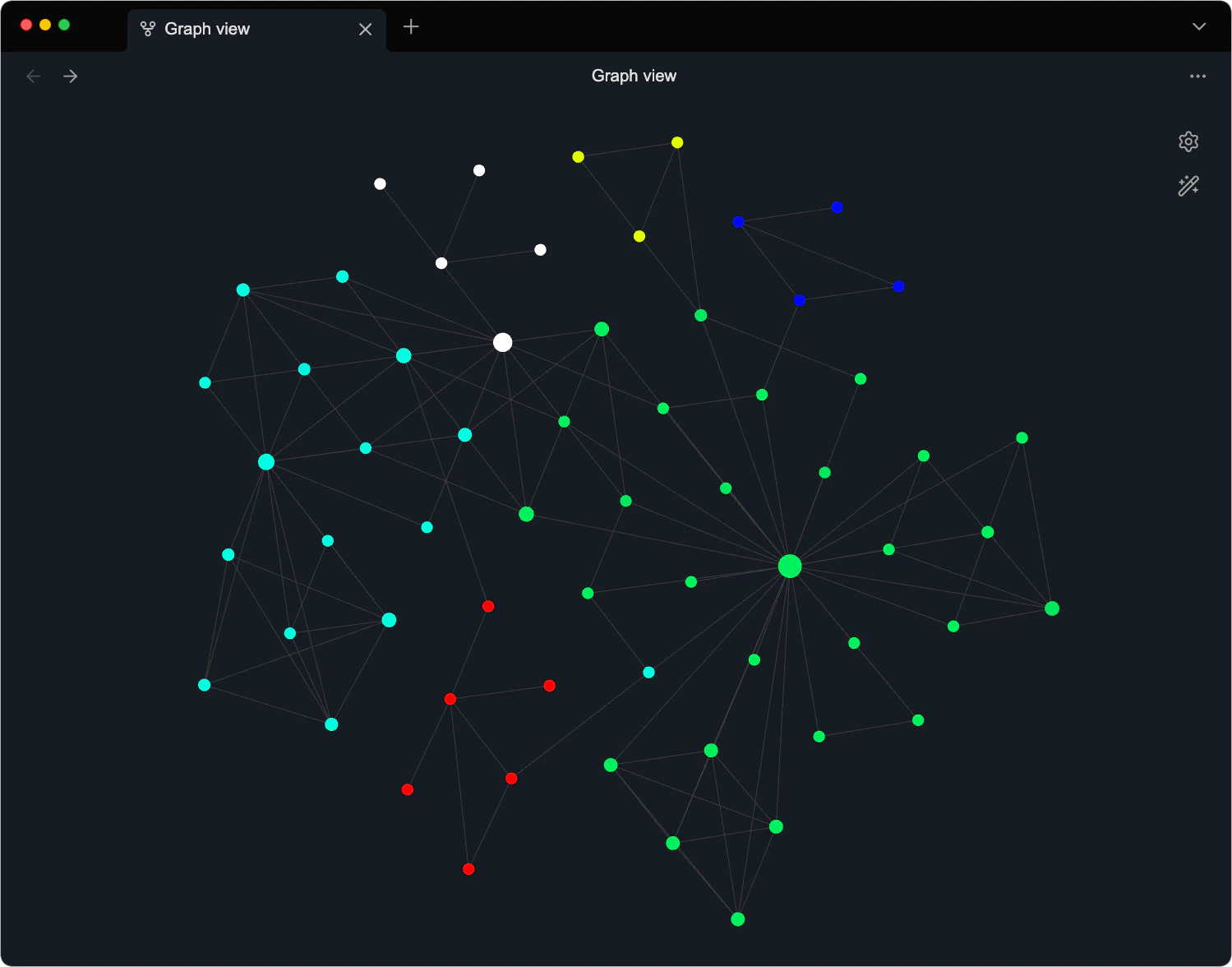
In the graph filter section, type `tag:#AI` to show only AI-tagged files and their connections. Combine with `-path:MOC` to hide hub files and see direct file-to-file links.
### Filtering
In the graph filter section, type `tag:#AI` to show only AI-tagged files and their connections. Combine with `-path:MOC` to hide hub files and see direct file-to-file links.