> ## Documentation Index
> Fetch the complete documentation index at: https://docs.augent.app/llms.txt
> Use this file to discover all available pages before exploring further.
# clip_export
> Export a video clip from any URL for a specific time range. Downloads only the requested segment, not the full video.
Extract a precise segment from any video URL. Only the requested time range is downloaded — no full video download required. Perfect for pulling clips around keyword matches, interesting moments, or specific timestamps.
Supports YouTube, Instagram, TikTok, Twitter/X, and 1000+ sites via yt-dlp.
***
## Example
**Request:**
```json theme={null}
{
"url": "https://youtube.com/watch?v=xxx",
"start": 120,
"end": 180
}
```
**Response:**
```json theme={null}
{
"file_path": "/Users/you/Desktop/xxx_120-180.mp4",
"duration": 60,
"start": 120,
"end": 180,
"url": "https://youtube.com/watch?v=xxx"
}
```
***
## Example: Custom output
```json theme={null}
{
"url": "https://www.instagram.com/reel/abc123/",
"start": 0,
"end": 30,
"output_dir": "~/Videos/clips",
"output_filename": "intro_clip"
}
```
***
## Parameters
| Parameter | Required | Default | Description |
| ----------------- | -------- | -------------- | ------------------------------------------------------- |
| `url` | Yes | — | Video URL (YouTube, Instagram, TikTok, Twitter/X, etc.) |
| `start` | Yes | — | Start time in seconds |
| `end` | Yes | — | End time in seconds |
| `output_dir` | No | `~/Desktop` | Directory to save the clip |
| `output_filename` | No | auto-generated | Filename for the clip (without extension) |
***
## Adjusting padding
When exporting clips around keyword matches, the default padding is **15 seconds** before and after the keyword timestamp. If the clip feels too short or too long, just ask for different padding — for example, "give me 30 seconds before and 10 seconds after." Claude will re-export the clip with your exact timing, and the previous clip is automatically overwritten — no manual cleanup needed.
***
## Web UI
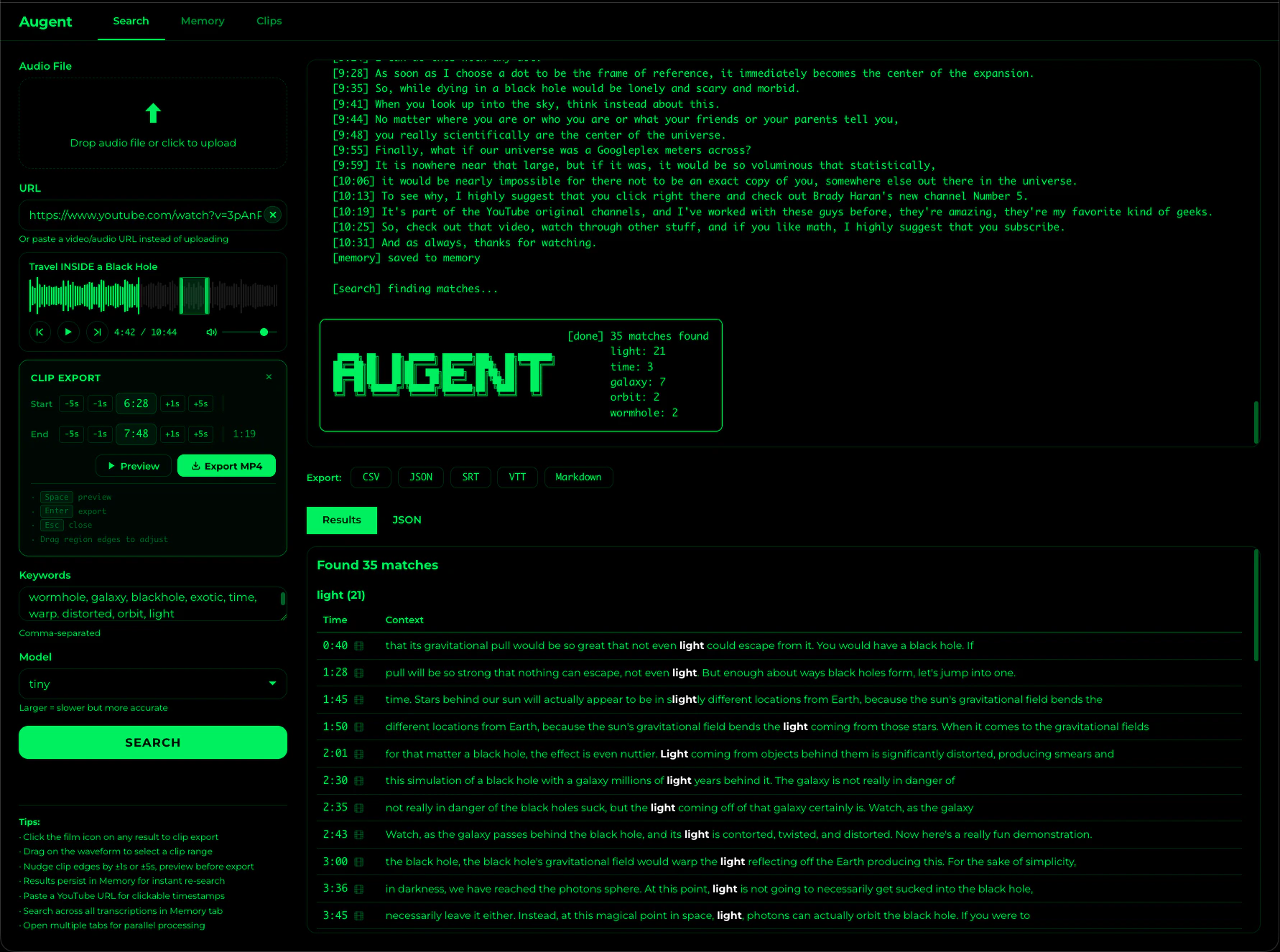
Clip export is also available visually in the [Web UI](/web-ui/overview#clip-export). Click the film icon on any search result to create a region on the waveform, fine-tune with ±1s/±5s nudge buttons, preview the selection, and export — all without leaving the browser.
 ***
## Notes
Only the requested segment is downloaded. A 60-second clip from a 3-hour video downloads in seconds, not hours.
Works with any URL that `yt-dlp` supports — YouTube, Instagram Reels, TikTok, Twitter/X videos, and 1000+ other sites.
Combine with `search_audio` or `deep_search` to find timestamps first, then extract clips around matches.
Re-exporting a clip with the same filename automatically overwrites the previous file.
The output format depends on the source. YouTube typically produces `.mp4`.
***
## Notes
Only the requested segment is downloaded. A 60-second clip from a 3-hour video downloads in seconds, not hours.
Works with any URL that `yt-dlp` supports — YouTube, Instagram Reels, TikTok, Twitter/X videos, and 1000+ other sites.
Combine with `search_audio` or `deep_search` to find timestamps first, then extract clips around matches.
Re-exporting a clip with the same filename automatically overwrites the previous file.
The output format depends on the source. YouTube typically produces `.mp4`.