

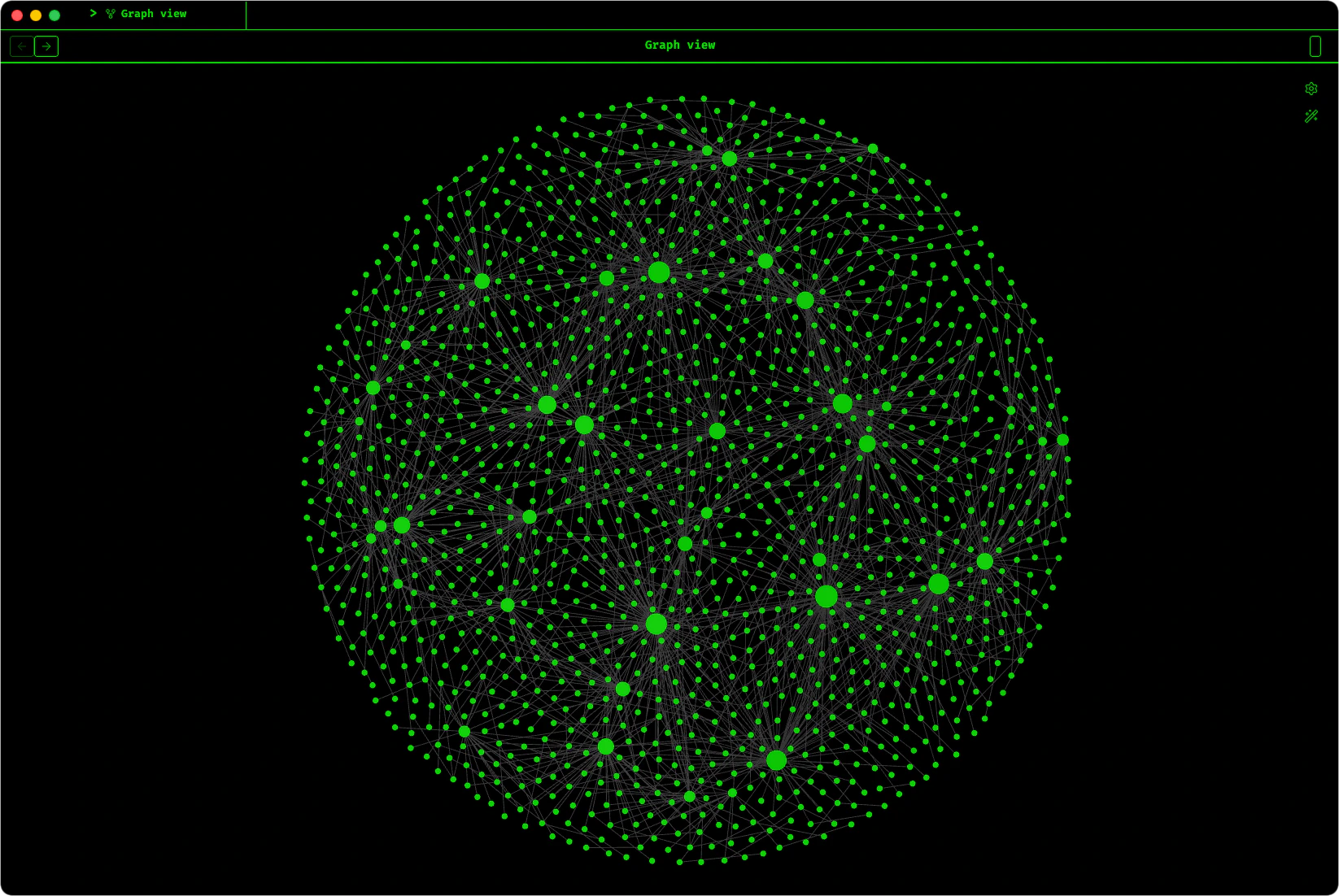
[[wikilinks]] between related content. Point Obsidian at the memory directory and you get a live knowledge graph that grows with every take_notes call.
Obsidian Setup for Mac
Set Obsidian as the default opener for
.md and .txt files on macOS.What you get
- YAML frontmatter on every file: title, tags, duration, language, date, type
- Automatic tagging: semantic embeddings assign topic tags without any manual work
[[Wikilinks]]between semantically related transcriptions- MOC (Map of Content) hub files that cluster transcriptions by topic
- Notes ↔ transcription links: every notes file links back to its source
- No orphan nodes: chronological neighbor links ensure every file is connected
File types
How connections form
- Tags create shared hub nodes. Two files tagged
#AIboth connect to the AI node [[Wikilinks]]connect semantically similar transcriptions via embedding cosine similarity- MOC files act as cluster centers, pulling related nodes together
- Notes link back to their source transcription via
source_transcriptionfrontmatter - Translations link back to the original via
originalfrontmatter - Chronological neighbors: every new transcription links to the previous one, preventing orphans
Graph view
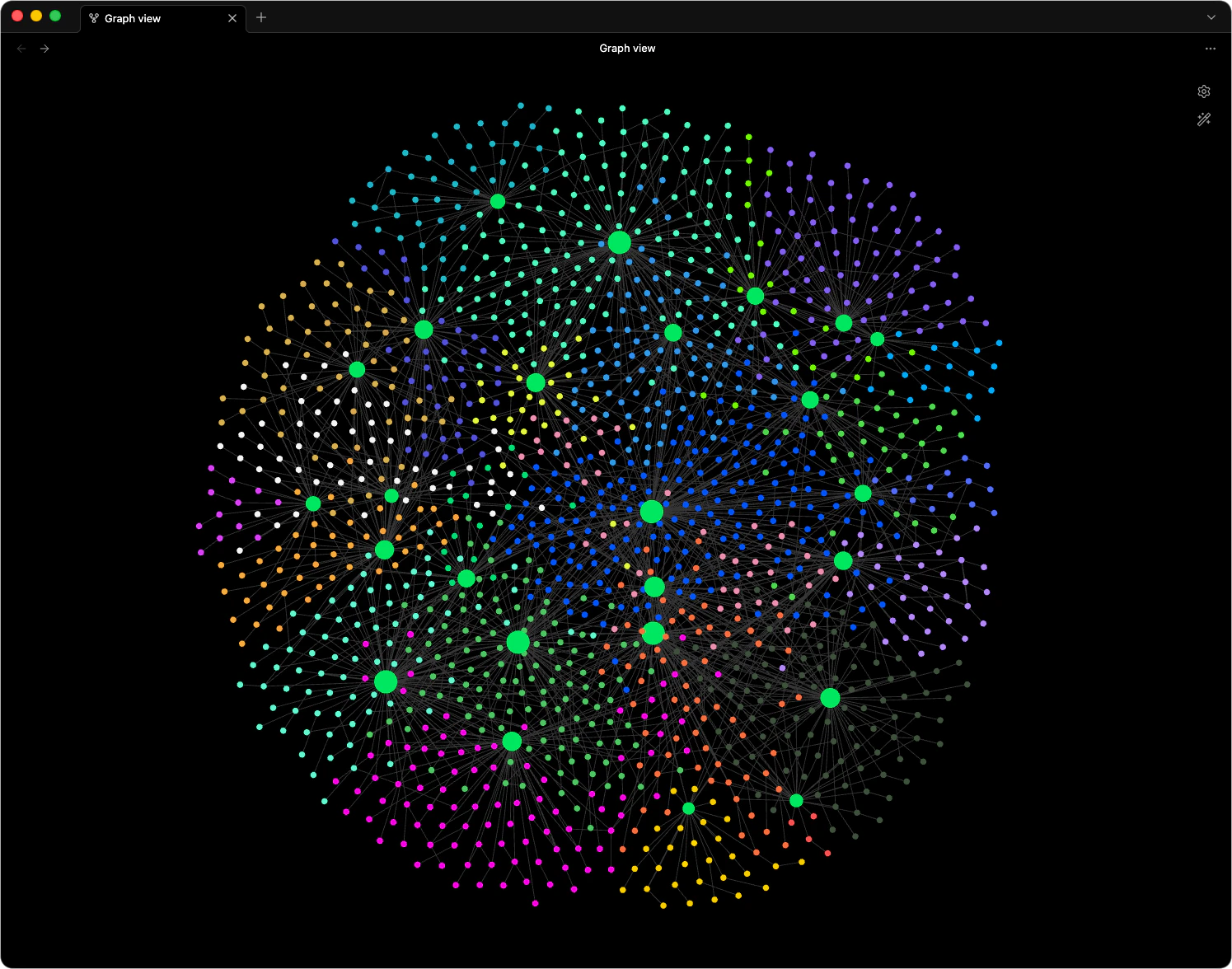
Color groups
Open Graph view > Settings (the gear icon) and add color groups to visually distinguish topics. These are examples to get you started — replace them with your own tags and colors:
Add more groups as your tags grow. Any query that works in Obsidian search works here.
Display settings
These values are a good starting point. Tweak them to your preference.
Enable Arrows to see link directionality. Turn Tags off in the filter section — at scale, tag nodes add clutter without adding information.
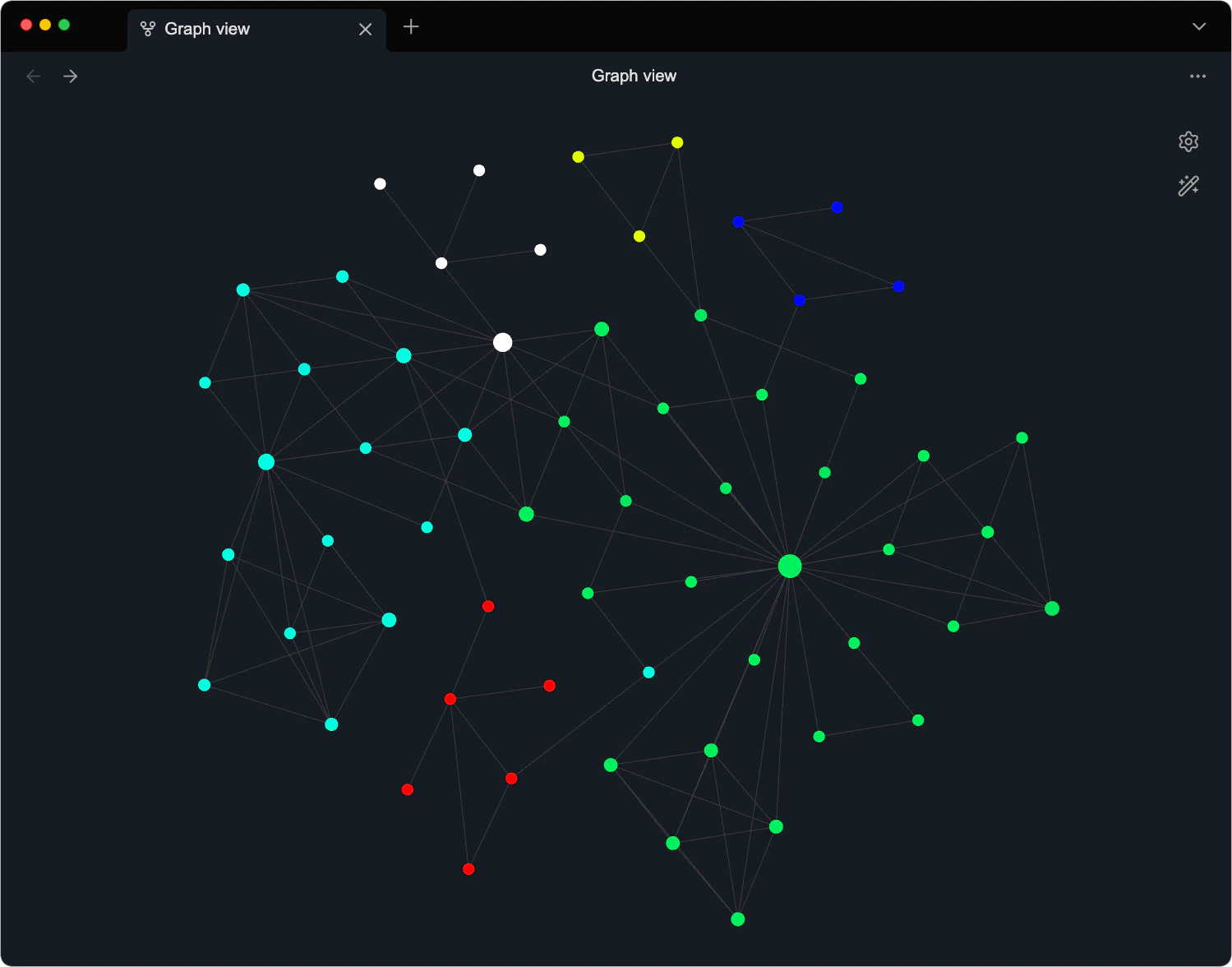
Local graph vs global graph
- Global graph (
Cmd + G): Every file in the vault. Great for the full picture, but gets dense past a few hundred files. - Local graph: Right-click any file > Open local graph. Shows only that file’s immediate connections.
Filtering
In the graph filter section, typetag:#AI to show only AI-tagged files and their connections. Combine with -path:MOC to hide hub files and see direct file-to-file links.